• Skip to primary navigation
  • Skip to main content
  • Skip to primary sidebar
  • Skip to footer

Galaxy S4 Guides

  • Home
  • About
    • About this community
    • Register
    • Contact
    • Privacy
  • S4 Features
    • Galaxy S4 features explained
    • Air Gesture
    • Air View
    • Adapt Display
    • Adapt Sound
    • Animated Photo
    • Business card reader (Optical Reader)
    • ChatON
    • Dual Shot
    • Drama Shot
    • Easy Mode
    • Eraser Shot
    • Group play
    • HomeSync
    • S Health
    • S Translator
    • Samsung Hub
    • Smart pause
    • Smart scroll
    • Sound and Shot
    • Story Album
    • WatchON
  • Manual
    • Updated to Lollipop: Samsung Galaxy S4 Lollipop User Manual (PDF)
    • Galaxy S4 online user manual (HTML)
    • Galaxy S4 user manual (PDF)
      • AT&T Samsung Galaxy S4 Manual
      • Galaxy S4 Manual for Verizon
      • Galaxy S4 Manual for T-Mobile
      • English
      • Arabic (العربية al-ʻarabīyah)
      • Bulgarian (български език, bălgarski ezik)
      • Croatian (hrvatski)
      • Czech (čeština)
      • Danish (Dansk)
      • Dutch (Nederlands)
      • Finnish (Suomen kieli)
      • French (français)
      • Indonesian (Bahasa Indonesia)
      • Italian (Italiano)
      • Japanese (日本語)
      • Korean (한국어)
      • Norwegian (Norsk)
      • Persian (Farsi)
      • Polish (język polski, polszczyzna)
      • Portuguese (português, Brazil)
      • Romanian (limba română)
      • Russian (ру́сский язы́к)
      • Spanish (español)
      • Swedish (Svensk)
      • Thai (Siamese, ภาษาไทย)
      • Traditional Chinese (繁体中文)
    • Galaxy S4 Customer Consultant Guide
  • S4 Tips
    • How to install Flash on Galaxy S4 (and make it work!)?
    • How to take screenshot on Galaxy S4 without using any apps?
    • Top 5 problems after Android 4.3 update for Galaxy S4, and the solutions
    • Air Gesture
    • Easy Mode
    • S Health
    • Story Album
    • Smart scroll
    • Sound and Shot
    • The ultimate guide of Galaxy S4 screen mirroring
  • Buyer Guide
    • S4 Case/Cover
  • Forums

Google Play Store Edition Galaxy S4: is it better or worse than the original S4?

by simon 4 Comments

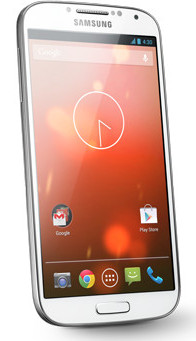
gogole-play-edition-galaxy-s4As announced in Google I/O 2013, Google edition of Galaxy S4 now is available  for order on Google Play Store (US only currently). You can get one at $649 with free shipping.

Google edition Galaxy S4 comes with stock Android 4.2.2. It means it is a vanilla version of Android like that in Nexus devices. The controversial TouchWiz skin  was stripped, and the stock UI was loaded. So, users will get the “pure” Android experience without bloatwares and hacks from manufactures. The 16GB Google Play version of Galaxy S4 has a usable storage of 12.65GB; while the original one you get from the carriers has only about 9GB.

Sizable Nexus users have been enjoyed such benefits for long time.  Nexus devices receive the update from Google directly. This means once the new version of Android is announced, the Nexus users will get it just in a couple of days.  However, for Samsung Galaxy S, S2 and S3 users, they have to wait at least 6 months to get such updates. In some regions, the update may be not available at all.

Another benefit enjoyed by  Nexus users is that there are no bloatwares from manufacturers and carriers. such bloatware not only eats the precious internal storage, but also may degrade the performance of the handset. Most of the bundled apps are not needed for most users.

Of course, some customizations from the manufactures  do add extra functions and features. For example, most of the prominent (useful or useless) features in Galaxy s4 as explained in the S4 features page are only available from Samsung.

Google edition of Galaxy S4 has no differences with  the original S4 when we talk about the hardware. Both comes  5″  full HD AMOLED display,  Qualcomm Snapdragon 600,  2GB RAM, 13MP/2MP camera, 2600mAH battery.

So, the difference is on the software side.

Essentially, almost all Samsung specific features explained in the S4 features page are removed. Some of the features you may miss, for example, dual shot, adapt display and animated photo. Luckily, there are some free or paid apps in the market can perform similar functions except the adapt display.

As lot of Samsung specific features are camera related, you can expected the camera app in the Google Play edition is quite different.  For some users, it is more intuitive and user friendly.

Compared to the original (aka Samsung version) Galaxy s4, the Google Play edition has the following advantages:

  • Timely update for new versions of Android  (be the first to enjoy some exciting new features);
  • Timely patches and bug fixes through OTA from Google;
  • No bloatware;
  • Simple and intuitive UI (subjective);
  • Works nicely with almost all apps in the Play Market;
  • Easier to root

Of there are some disadvantages:

  • You will miss a few Samsung specific features, for example, adapt display, dual shot, multi-window, animated photo;
  • Accessing to Samsung’ s walled garden is limited (most users probably do not care at this time);
  • It is quite expensive (compared to Nexus 4).

It is hard to say whether Google Play edition is better or worse than the original S4. You get pure Android experience on the identical hardware, but you will not able to get any subsidy from your carrier.  It means you probably will pay more.

So,  If budget is a concern and you want to get pure Android experience, get a Nexus 4. It is at least $300 cheaper (at the price of 4G access, full HD and a microSD slot).


 

(adsbygoogle = window.adsbygoogle || []).push({});

Filed Under: Galaxy S4 Buyer Guide, Galaxy S4 News, Galaxy S4 review Tagged With: Adapt display, AMOLED, Android, animated photo, camera, Dual shot, full HD, Galaxy S4, Google, jelly bean 4.2, Nexus 4, samsung, TouchWiz, UI, update

Reader Interactions

Comments

  1. Anonymous says

    November 22, 2013 at 11:00 pm

    I don’t need a knox system which is a total invasion of privacy. It gives access to ever nook an cranny of your information. You can’t turn it off or delete it. The bloat wear put 185 apps on my phone. I use 10 or so apps. Used almost all of the ram. It left about 540 to use.
    I have a Samsung galaxy s4 (16) I’m retired an don’t need or want all the bloat ware with the 4.3 download which messed up my phone in numerous ways. I’m mad as hell!!! I don’t need a big brother pushing stuff on a phone I bought an paid for. Maybe I can trade for an I phone? ?

    Reply
    • simon says

      November 23, 2013 at 11:06 am

      If you prefer pure Android, you now have more options. In addition to Nexus, Motorola’s Moto X, Mot G , new Droid (Verizon) also have very few bloatware.


      NEW!! Facebook page || Android Guides || Chromecast Guides || Headphone Guides || Galaxy S5 Guides || Galaxy S6 Guides || Galaxy S7 Guides || Galaxy S8 Guides || Galaxy S9 Guides || Galaxy S10 Guides || Galaxy S20 Guides || Galaxy Note Guides || Moto G Guides || Google Home Guides || Amazon Fire tablet Guides

      Reply
  2. Ernest Carroll says

    February 24, 2014 at 12:17 am

    Does the GPE have ANT+ support?

    Reply
    • simon says

      February 24, 2014 at 11:50 am

      GPE of S4 is listed with ANT+support somewhere. But it probably does not work. My friend failed to make it work last month in the GPE s4.


      NEW!! Facebook page || Android Guides || Chromecast Guides || Headphone Guides || Galaxy S5 Guides || Galaxy S6 Guides || Galaxy S7 Guides || Galaxy S8 Guides || Galaxy S9 Guides || Galaxy S10 Guides || Galaxy S20 Guides || Galaxy Note Guides || Moto G Guides || Google Home Guides || Amazon Fire tablet Guides

      Reply

Leave a Reply hereCancel reply

Primary Sidebar

Follow Us!

Follow Us on TwitterFollow Us on YouTubeFollow Us on RSSFollow Us on Facebook

RSS Android Guides

  • A Complete Guide to Android ADB Wireless Debugging
  • Android 16: the definitive guide on new features and changes
  • Master Android 15 Easter Egg Game: Landroid
  • New Features and Improvements of Android 15
  • Top 14 new features of Android 14
  • Top 10 New Features of Android 13

RSS Galaxy S25 Guides

  • All New Features of One UI 8 (Android 16) Update for Galaxy S25, S24, S23, and S22
  • One UI 8 Update Highlights for Galaxy S25, S24, S23, and S22
  • How to manage camera modes on Galaxy S25 (and Galaxy S24, S23, S22, and S21 with One UI 7 update)?
  • How to Use Galaxy S25 Camera App?
  • A Definite Guide to Galaxy S25 Flipsuit Case
  • How to Access and Customize Now Brief on Galaxy S25?
  • Meaning of Galaxy S25 Status Icons and Notification Icons
  • Layout of Galaxy S25, S25+, and S25 Ultra

RSS Galaxy S24 Guides

  • The definitive guide to One UI 7 (Android 15) update for Galaxy S24, S23, S22, and S21
  • The Definitive Guide to Galaxy AI on Galaxy S24, S23, S22, Fold 6, Fold 5, Flip 6, and Flip 5
  • Use the Light Performance Profile to Extend Battery Life and Reduce Heat on Galaxy S24, S23, S22, and S21 (all Samsung Galaxy Phones with Android 14/One UI 6.0)
  • How to adjust lock screen timeout on Galaxy S24, S23, S22, and other Galaxy devices?
  • How to use Circle to Search on Galaxy S24?

RSS Galaxy S23 Guides

  • Explanation of all One UI 6.1 features for Galaxy S23, S23+, S23 Ultra, and other Galaxy devices
  • How to use One-Tap Editing in the Android 14 (One UI 6) update?
  • How to enable and use Auto Scan to scan documents automatically on Galaxy S23, S22, and S21?
  • New camera features in One UI 6 (Android 14) update for Galaxy S23, S22, and S21
  • Galaxy S23 User Manual in American English with Android 14 (One UI 6) Update

RSS Galaxy S22 Guides

  • A Complete Guide for Android 14 (One UI 6) Update on Samsung Galaxy Devices
  • How to touch and hold to customize Lock Screen on Galaxy S22, S21, and S20 with the Android 13 update?
  • How to use Maintenance Mode on Galaxy S23, S22, S21, and S20 with Android 13 (One UI 5)?
  • How to extract text from photos and images on Galaxy S22, S21, and S20?

RSS Galaxy S21 Guides

  • Top 12 new features in Android 12 update for Galaxy S21, S20 and S10
  • Android 12 update vs One UI 4.0 vs One UI 4.1: update Galaxy S21, S20 and S10 to Android 12
  • How to set and resize photo size on Samsung Galaxy S21, S20, S10, and S9 without using any third-party apps?

RSS Galaxy S20 Guides

  • The End of the Road: No Android 14 Update for the Galaxy S20
  • How to Use Enhanced Processing on Galaxy S20 with Android 11 update?
  • How to access, use, and customise widgets on Galaxy S20 lock screen and AOD screen with Android 11 update for Galaxy S20?

RSS Galxy S10 Guides

  • End of security update for Galaxy S10, S10+ and S10e
  • Top 10 new features in Android 10 update for Galaxy S10
  • Top 5 new features added in Galaxy S10 September Update
  • How to move apps to the micro SD card to free phone storage on Galaxy S10 ?

RSS Galaxy S9 Guides

  • How to use Bixby quick commands on Galaxy S9, S9+, S8, S8+, Note 8, and Note 9 with the Android Pie update?
  • How to remap Bixby button on Galaxy S9 and S9+ after updating to Android Pie?

RSS Galaxy S8 Guides

  • How to use the new features in Android Pie update for Galaxy S8 and S8+?
  • How to use app shortcuts in Galaxy S8 Home screen in Android Oreo update for Galaxy S8 and S8+?

RSS Galaxy S7 guides

  • How to use Galaxy S7 multi window new features in Android Nougat udpate for Galaxy S7 and Galaxy S7 edge?
  • How to customize Galaxy S7 quick setting buttons after Android Nougat update?

RSS Google Home Guides

  • How to Use Quick Gestures on Nest Hub 2nd Gen and Nest Hub Max?
  • Understand the layout of Nest Hub (including Nest Hub 2nd Gen, Google Home Hub)

RSS Moto X Owners Community

  • Welcome on board, Motorola Razr!
  • Official Moto X4 User manual (User guide for Moto X 4th Gen , Moto X 2017)

RSS Galaxy Note Tips & Tricks

  • Top 11 disappointments of Galaxy Note 20 and Galaxy Note 20 Ultra
  • How to use the Dynamic Lock screen on Galaxy Note 10?

RSS Moto G Phone

  • Stylus features on Moto G Stylus (all models)
  • What’s new in Moto G 2024? Moto G 5G 2024 vs Moto G Power 2024 vs Moto G Play 2024
  • Understand Moto G Model Names
  • Thank You

RSS Chromecast Guide

  • How to enable developer options in Chromecast with Google TV and Google TV Streamer?
  • Meaning of LED light on voice remote for Chromecast with Google TV and Google TV Streamer
  • What’s new in Chromecast 2018 (3rd gen of Chromecast)?
  • How to use VLC media player on PC to stream music and video to Chromecast and Chromecast Audio?

RSS Galaxy S6 Guides

  • Android Nougat Update Guide for Galaxy S6, Galaxy S6 edge and Galaxy S6 edge+
  • Official Galaxy S6 user manual with Android Nougat update

RSS Drive in Singapore

  • Singapore ERP (Electronic Road Pricing): 6 Facts You Need to Know
  • Car Insurance in Singapore Explained
  • Top 5 rules of driving in Singapore safely and legally during COVID-19 Circuit Breaker period
  • Understand COE Price by 10 Simple Questions
  • Home
  • About
    • About this community
    • Register
    • Contact
    • Privacy
  • S4 Features
    • Galaxy S4 features explained
    • Air Gesture
    • Air View
    • Adapt Display
    • Adapt Sound
    • Animated Photo
    • Business card reader (Optical Reader)
    • ChatON
    • Dual Shot
    • Drama Shot
    • Easy Mode
    • Eraser Shot
    • Group play
    • HomeSync
    • S Health
    • S Translator
    • Samsung Hub
    • Smart pause
    • Smart scroll
    • Sound and Shot
    • Story Album
    • WatchON
  • Manual
    • Updated to Lollipop: Samsung Galaxy S4 Lollipop User Manual (PDF)
    • Galaxy S4 online user manual (HTML)
    • Galaxy S4 user manual (PDF)
      • AT&T Samsung Galaxy S4 Manual
      • Galaxy S4 Manual for Verizon
      • Galaxy S4 Manual for T-Mobile
      • English
      • Arabic (العربية al-ʻarabīyah)
      • Bulgarian (български език, bălgarski ezik)
      • Croatian (hrvatski)
      • Czech (čeština)
      • Danish (Dansk)
      • Dutch (Nederlands)
      • Finnish (Suomen kieli)
      • French (français)
      • Indonesian (Bahasa Indonesia)
      • Italian (Italiano)
      • Japanese (日本語)
      • Korean (한국어)
      • Norwegian (Norsk)
      • Persian (Farsi)
      • Polish (język polski, polszczyzna)
      • Portuguese (português, Brazil)
      • Romanian (limba română)
      • Russian (ру́сский язы́к)
      • Spanish (español)
      • Swedish (Svensk)
      • Thai (Siamese, ภาษาไทย)
      • Traditional Chinese (繁体中文)
    • Galaxy S4 Customer Consultant Guide
  • S4 Tips
    • How to install Flash on Galaxy S4 (and make it work!)?
    • How to take screenshot on Galaxy S4 without using any apps?
    • Top 5 problems after Android 4.3 update for Galaxy S4, and the solutions
    • Air Gesture
    • Easy Mode
    • S Health
    • Story Album
    • Smart scroll
    • Sound and Shot
    • The ultimate guide of Galaxy S4 screen mirroring
  • Buyer Guide
    • S4 Case/Cover
  • Forums

Footer

RSS Headhone Guides

  • Bluetooth LE Audio and the LC3 Codec: A Technical Deep Dive
  • The Physics and Engineering of Super Wide Band (SWB) Voice
  • True Wireless Stereo (TWS) Explained
  • The Complete Technical Guide to the Galaxy Buds 4 & Buds 4 Pro
  • The Right Fit of Galaxy Buds 4 — User Personas & Recommendations

RSS Chinese Music

  • How to Cast Chinese Music Radio to Chromecast or Google Home?
  • 十面埋伏 (Ambushed,Pipa,琵琶曲,Shi Mian Mai Fu)
  • Meet in Yurt(敖包相会, Ao Bao Xiang Hui,Folk song,民歌)
  • Purple Bamboo Melody(紫竹调, Zi Zhu Diao,Yangqin,扬琴)

RSS Kindle Fire Guide

  • Fire Tablet Buyer’s Guide 2025
  • How to use Writing Assist on Fire Tablet?
  • How to use Wallpaper Creator on your Fire tablet?
  • How to Use Webpage Summaries on Your Fire Tablet?
  • What’s new in Fire HD 8 2024 (12th Gen)?

© 2013–2026 · All About Galaxy S4 is an online community for Galaxy S4 owners! · · Hosted by PTRHosting · Powered by Genesis framework for WordPress
Samsung Galaxy S4 guide, user manual and tutorials! Everything about how to use Samsung Galaxy S4.
Disclaimer: Samsung, Galaxy, Galaxy S4 are trademarks of Samsung. Android is a trademark of Google. This website is NOT affiliated with Samsung or Google in any way. All the information provided on this website is provided on an "as is" and "as available" basis and you agree that you use such information entirely at your own risk.

We use cookies to give you the best online experience. By using our website you agree to our use of cookies in accordance with our cookie policy.
pixel